
How do I add a product ?
— Learn everything about how to add a product.
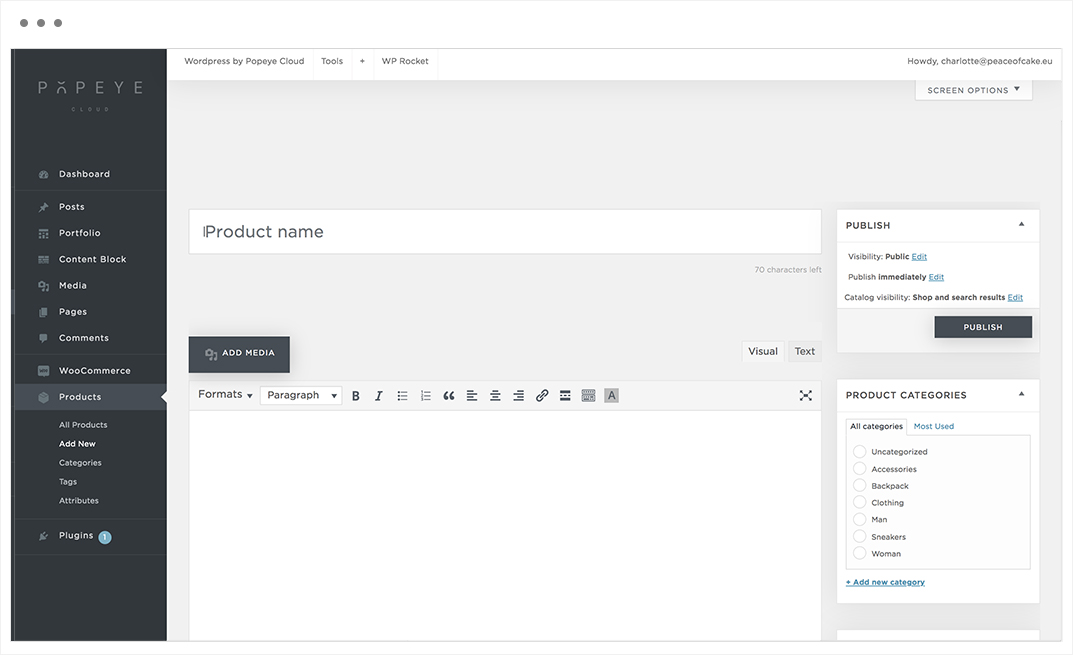
Choose ‘products’ in the side bar -> add new.
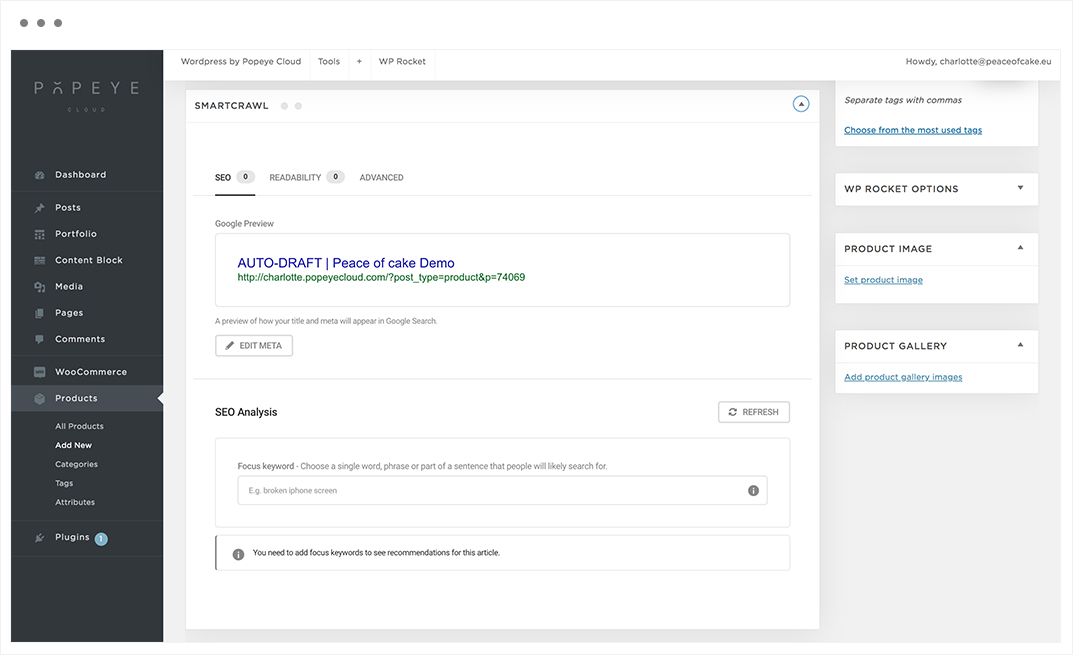
Enter a product name, an SEO title and description for your product .
Note: A preview of how your title and meta will appear in Google Search. How better the product name, how more people are likely to see in the google search.
Product date
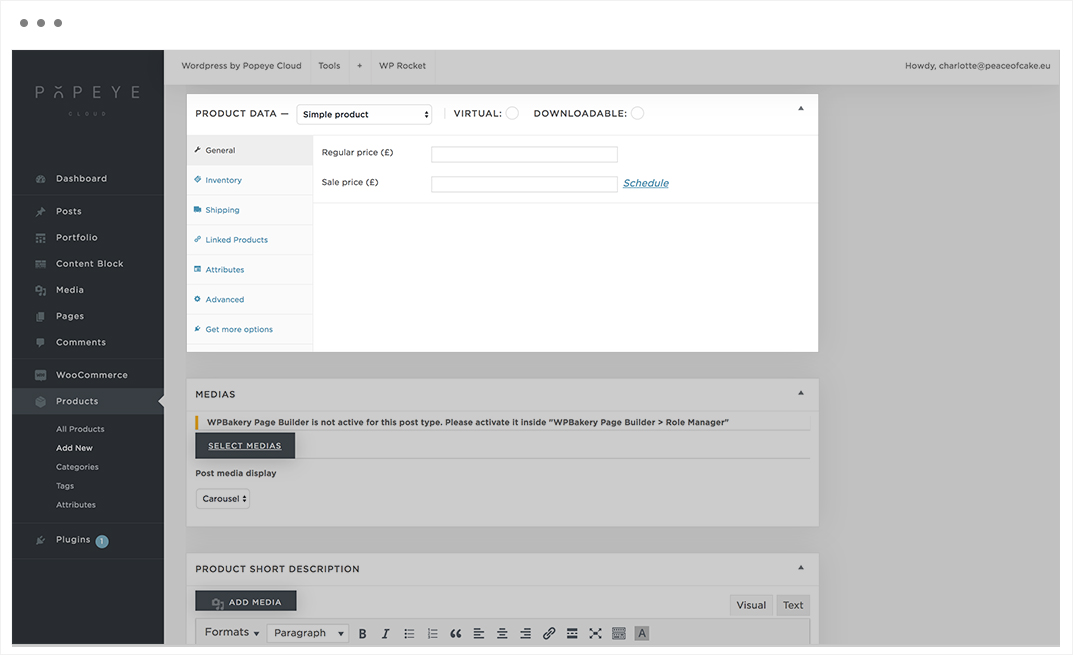
1.General
Add a product type at the top. In our case we select ‘simple product’. Enter a price, followed by a possible discount price. The sale price is the new price after deduction of the discount.
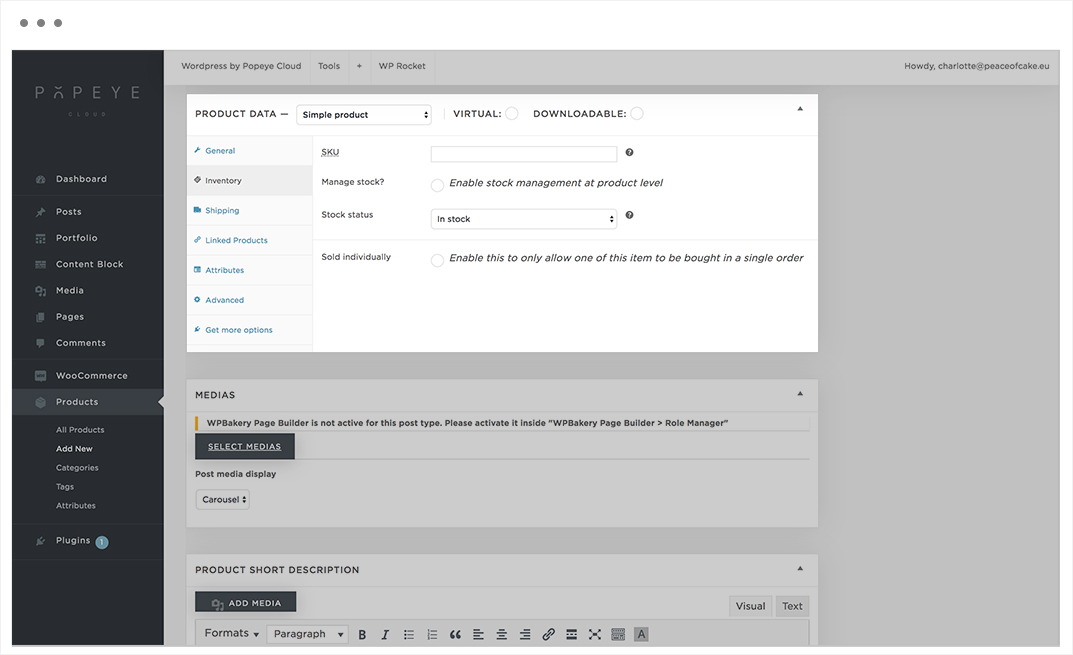
2.Inventory
You can enter a SKU code to manage your inventory. Indicate to manage the stock and to indicate the number of items in stock.
SKU: refers to a Stock-keeping unit, a unique identifier for each distinct product and service that can be purchased.
Stock status: controls whether or nat the product is listed as ‘in stock’ or ‘out of stock’ on the frontend.
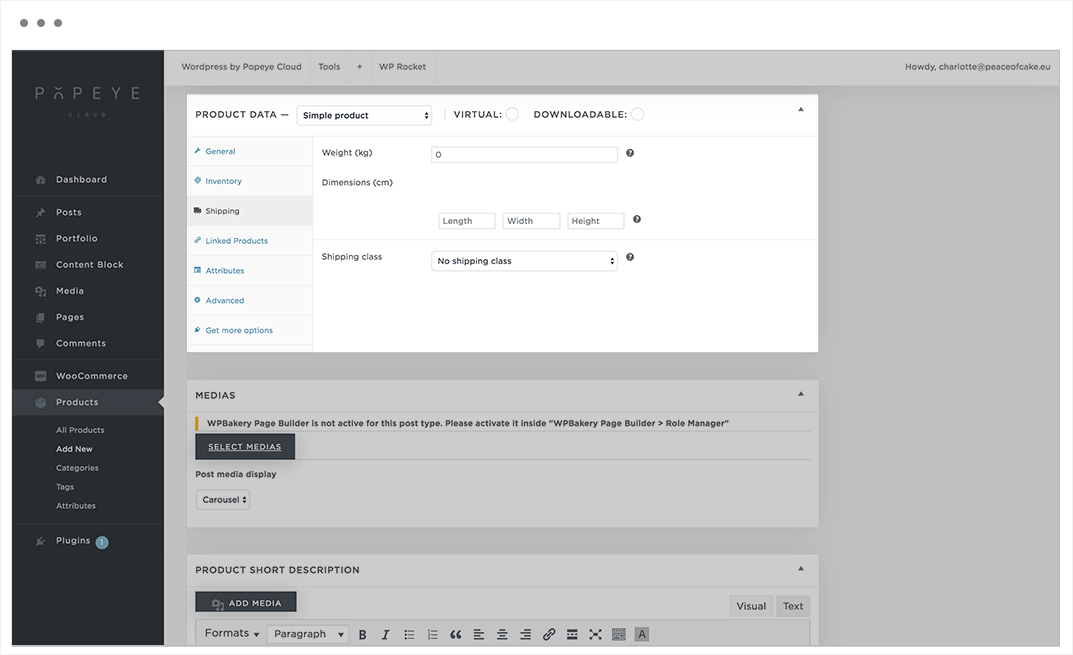
3.Shipping
Enter the shipping properties for the product.
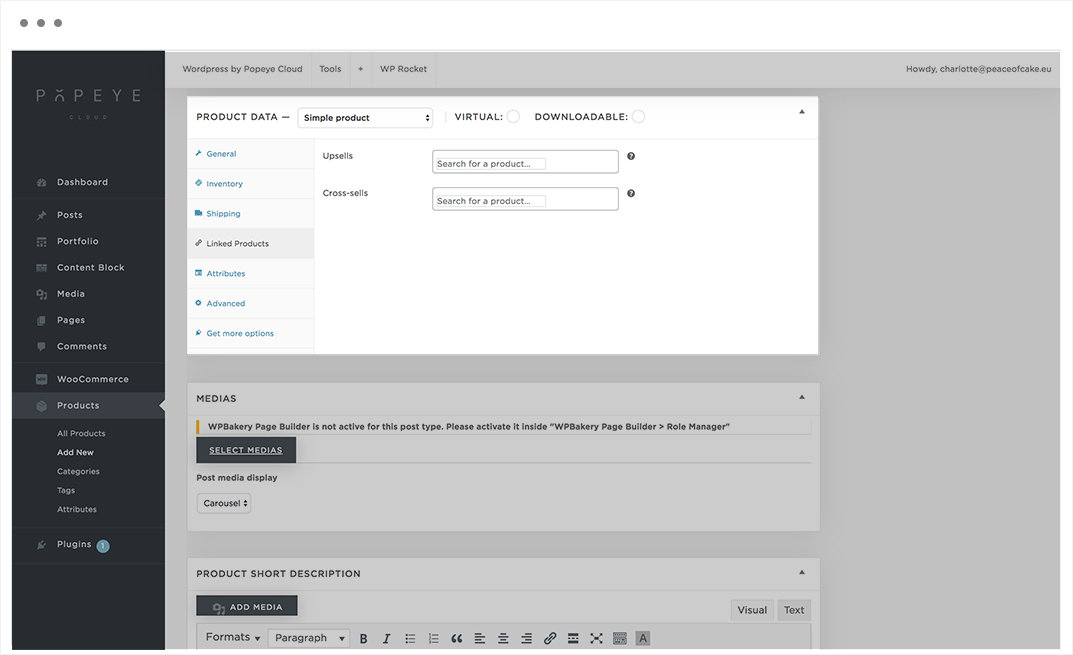
4.Linked products
The upsells products are displayed at the bottom of the product and the cross-sells products are displayed in the shopping cart.
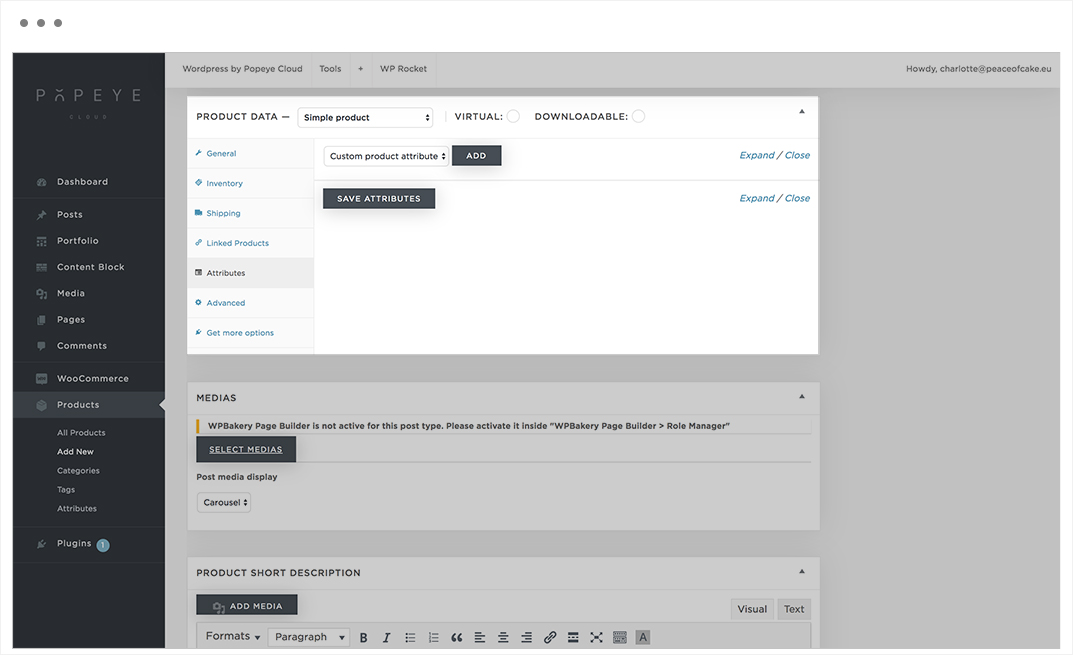
5.Attributes
Are a powerful means to offer your product in different variants, eg size and color. Each attribute has its own product characteristics such as price, in stock, …
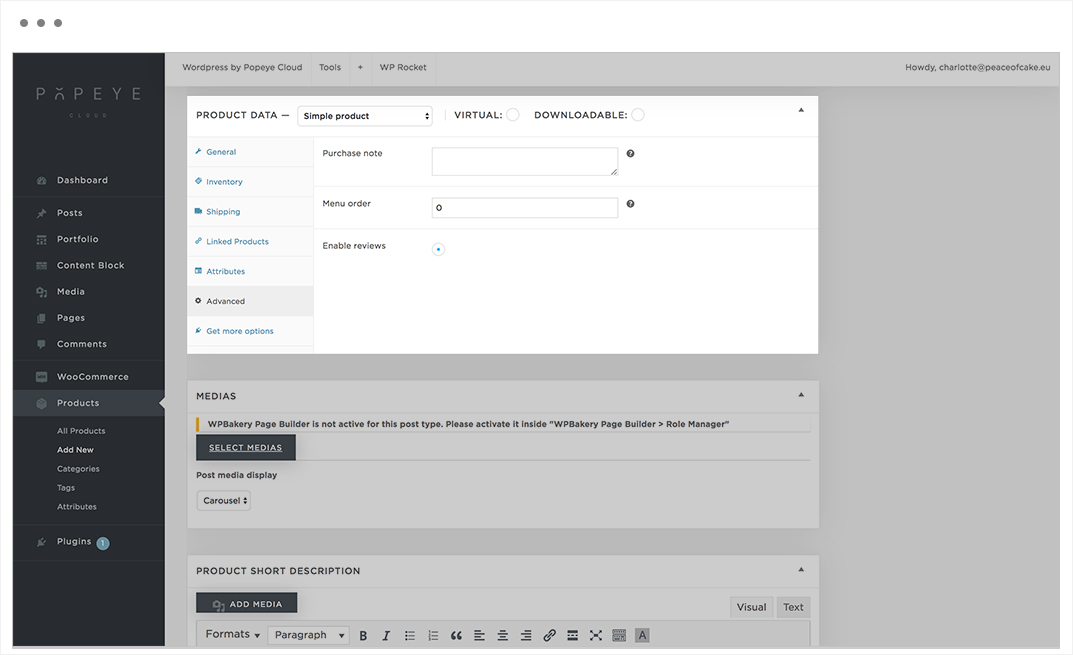
6.Advanced
In this option you can switch reviews on or off for a specific product or automatically add a shipping invoice.
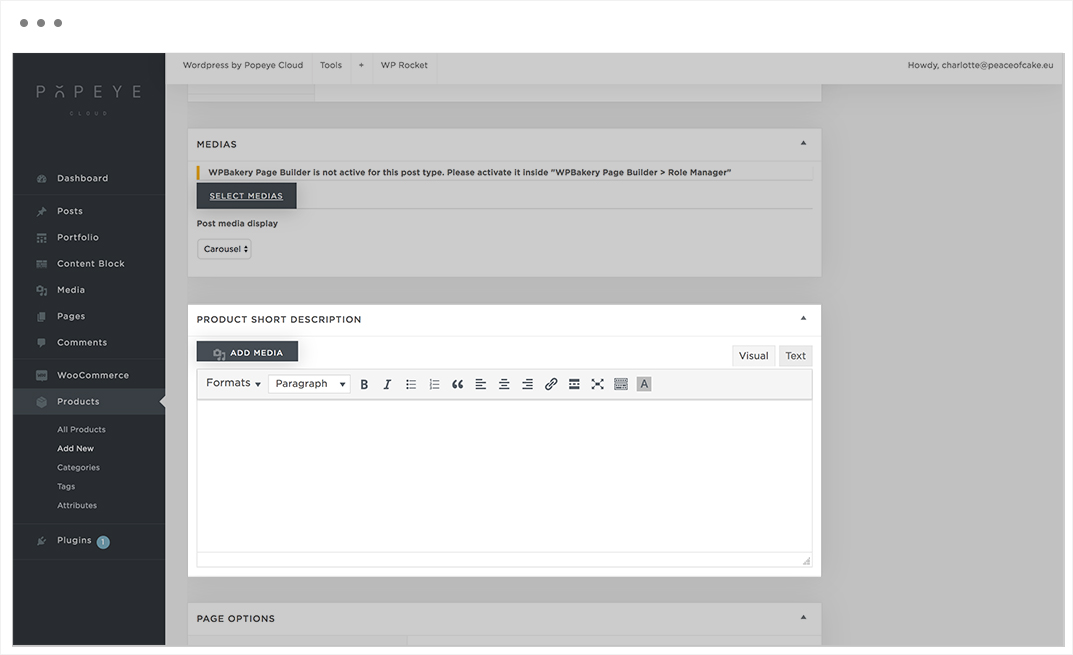
7.After this, enter the product short description.
8. Afterwards you can indicate in the right column to which category the product belongs. If your category is not listed, you can add it by choosing ‘add new category’. This also applies to tags.
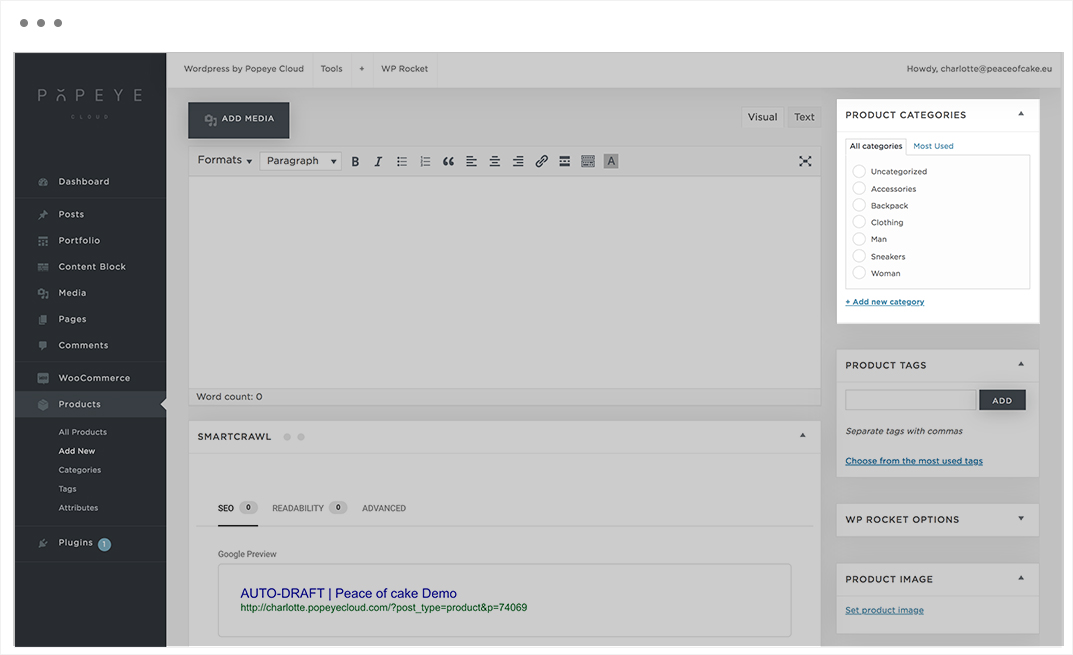
9. In the box of product image you can put the main image of the product that will be displayed in product overviews with multiple products.

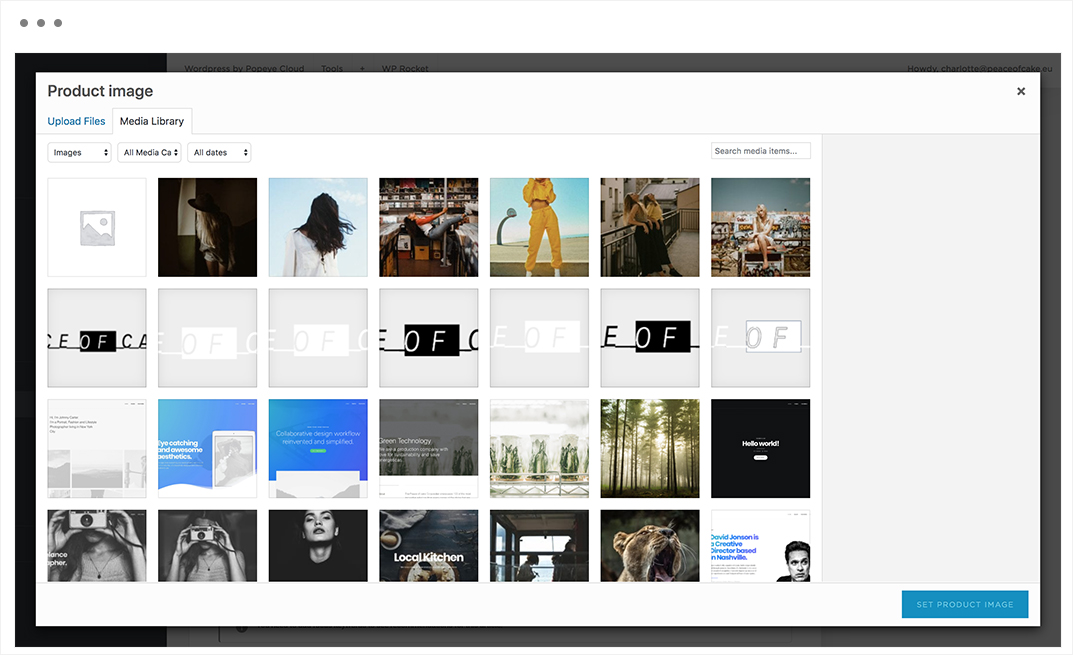
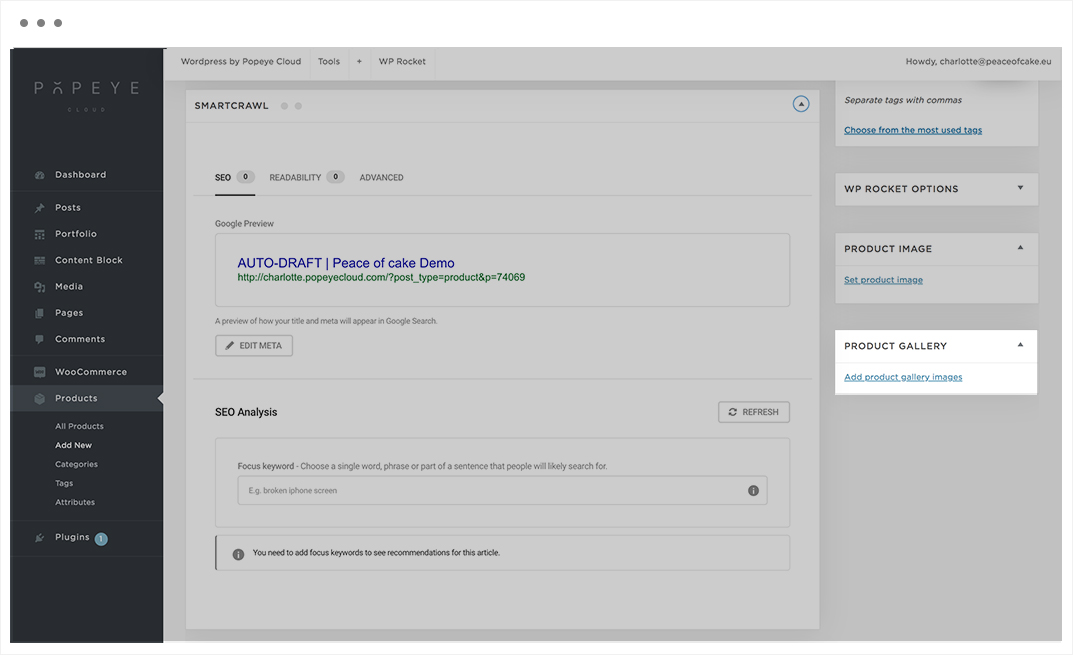
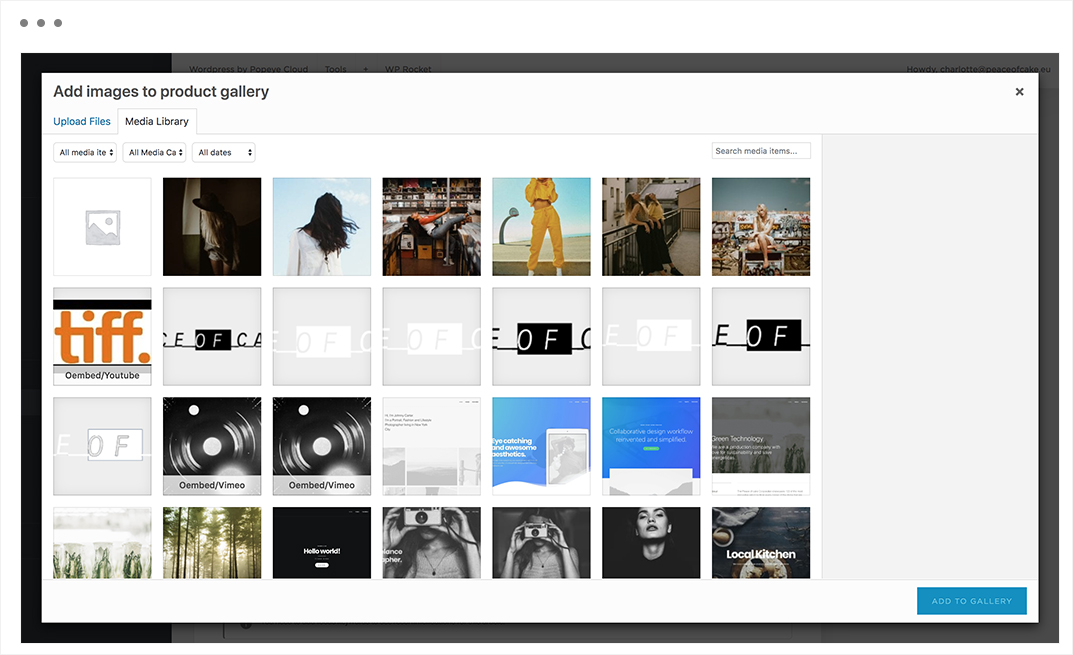
10. Finally, at product gallery you can add the photos of the product in a carousel, stack or isotope.