

How do I add a Snazzy map?
— With a Snazzy map you can add different locations on a Google Map overview to personalise the map.
Step 1:
Go to https://snazzymaps.com/account/register. It’s recommended to create an account so that you cannot lose your work.
Step 2:
Add your color theme to favourites:
https://snazzymaps.com/style/284872/
Step 3:
Create a map.
Go to https://snazzymaps.com/build-a-map and select your color theme from the favourites list.
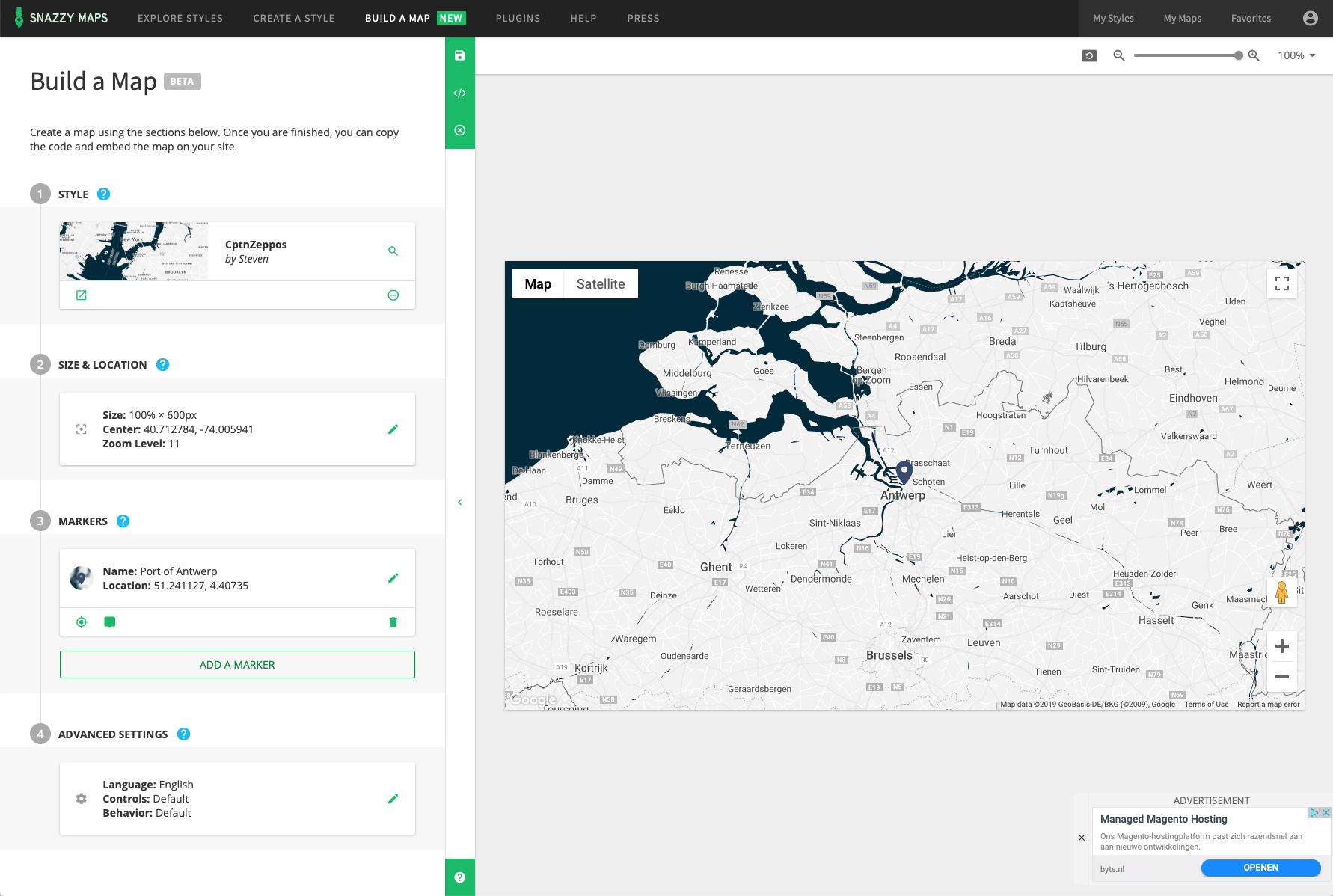
Step 4:
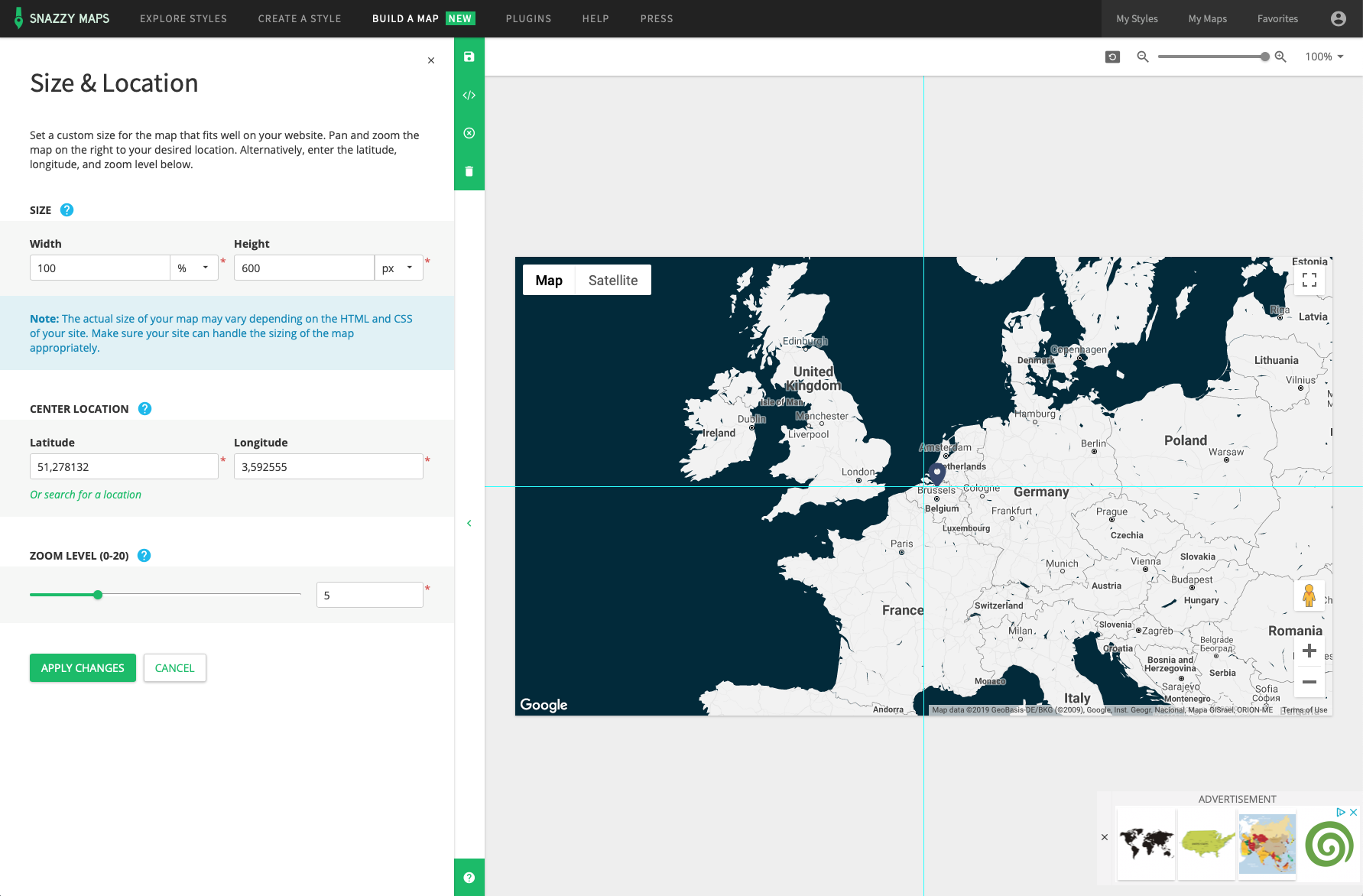
Size & location
Determine the size and location, set how much your map should be zoomed in when opening your site and which part of the world you want to make visible by clicking / dragging.
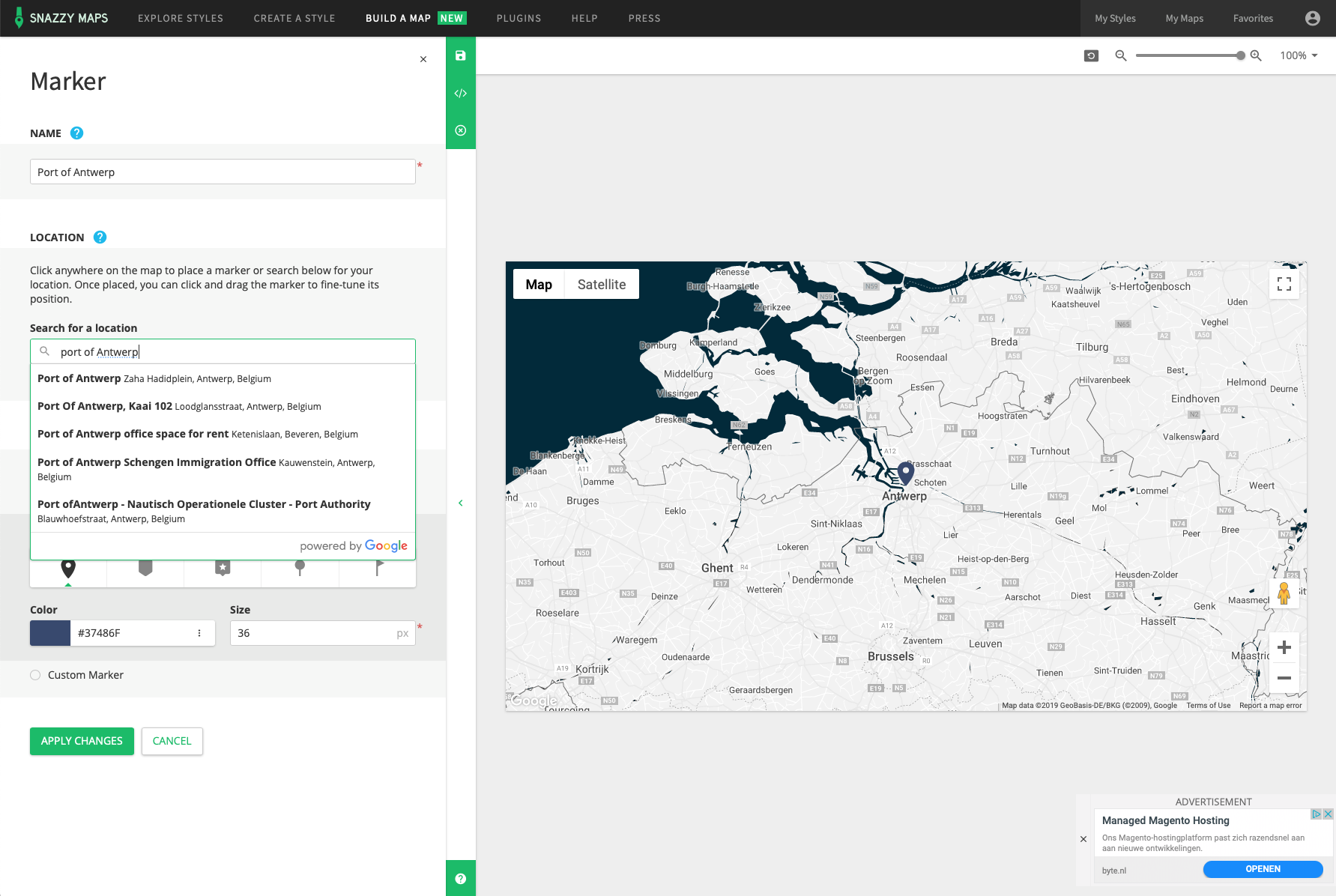
Step 5: markers
Below markers, click ‘add marker’.
Step 6:
After your marker has been added, you can click on add marker again under the marker to add the following one.
Step 7:
When you are finished, choose ‘save map’. To use Google Maps for free on your site, you are required by Google to create an API key on https://console.developers.google.com/apis. If you want you can also use ours: AIzaSyCcHaj6WIqS58djmQX2fOgH2BwYNWHrsu8
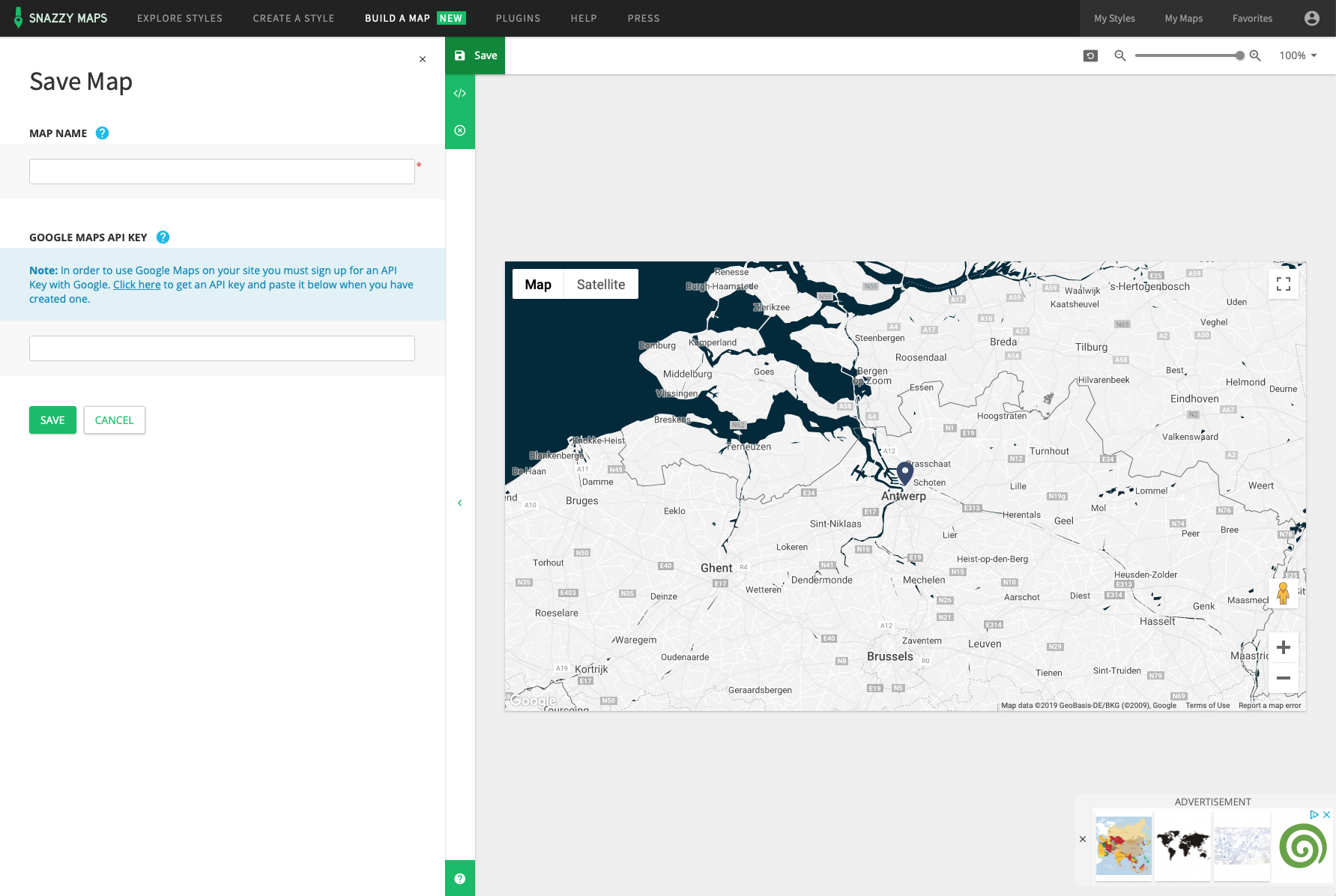
Step 8:
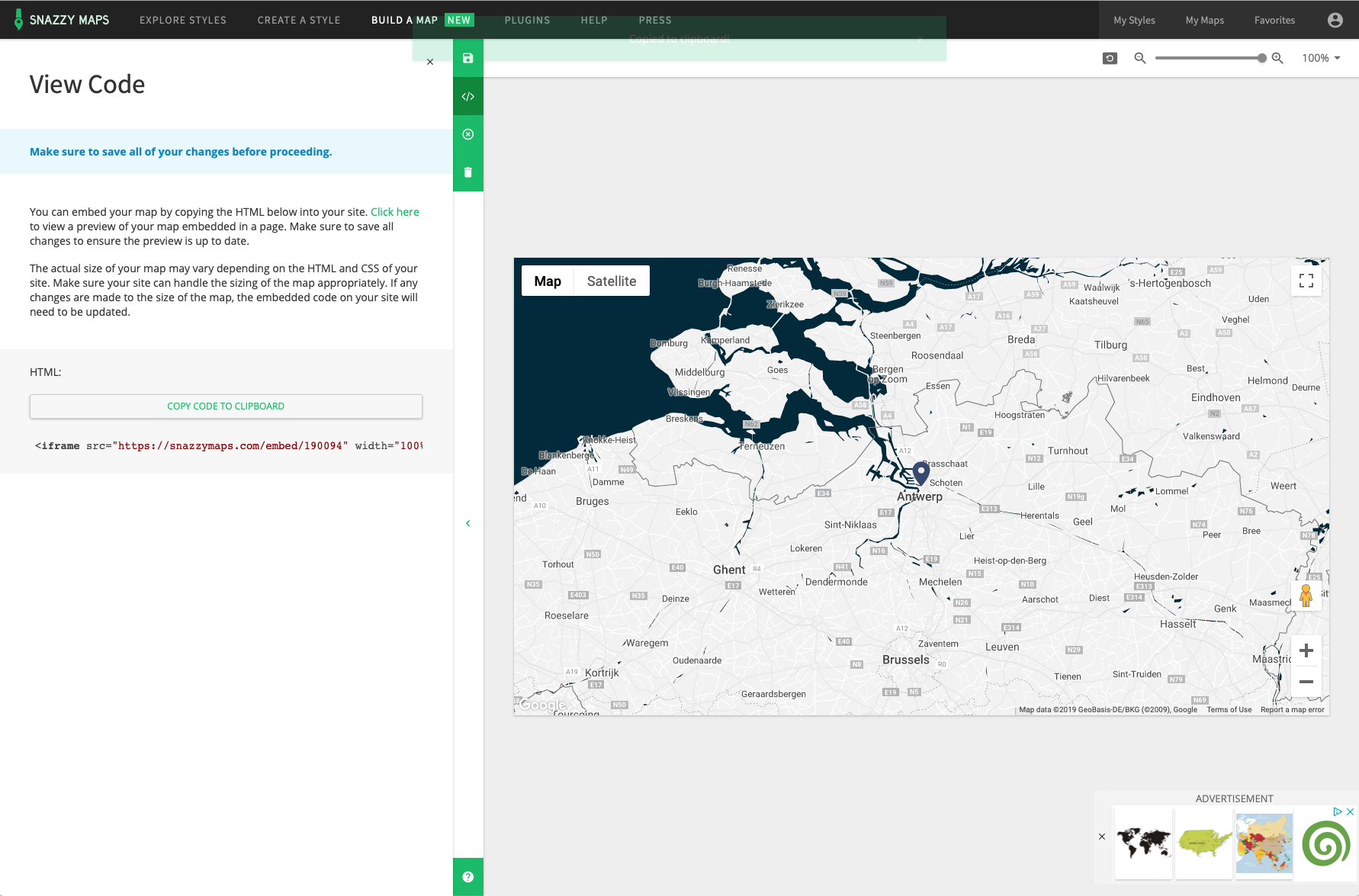
After the map is saved, you can copy the Google Maps code by clicking on ‘view code’ under the green button and then on ‘copy code to clipboard’.
Step 9:
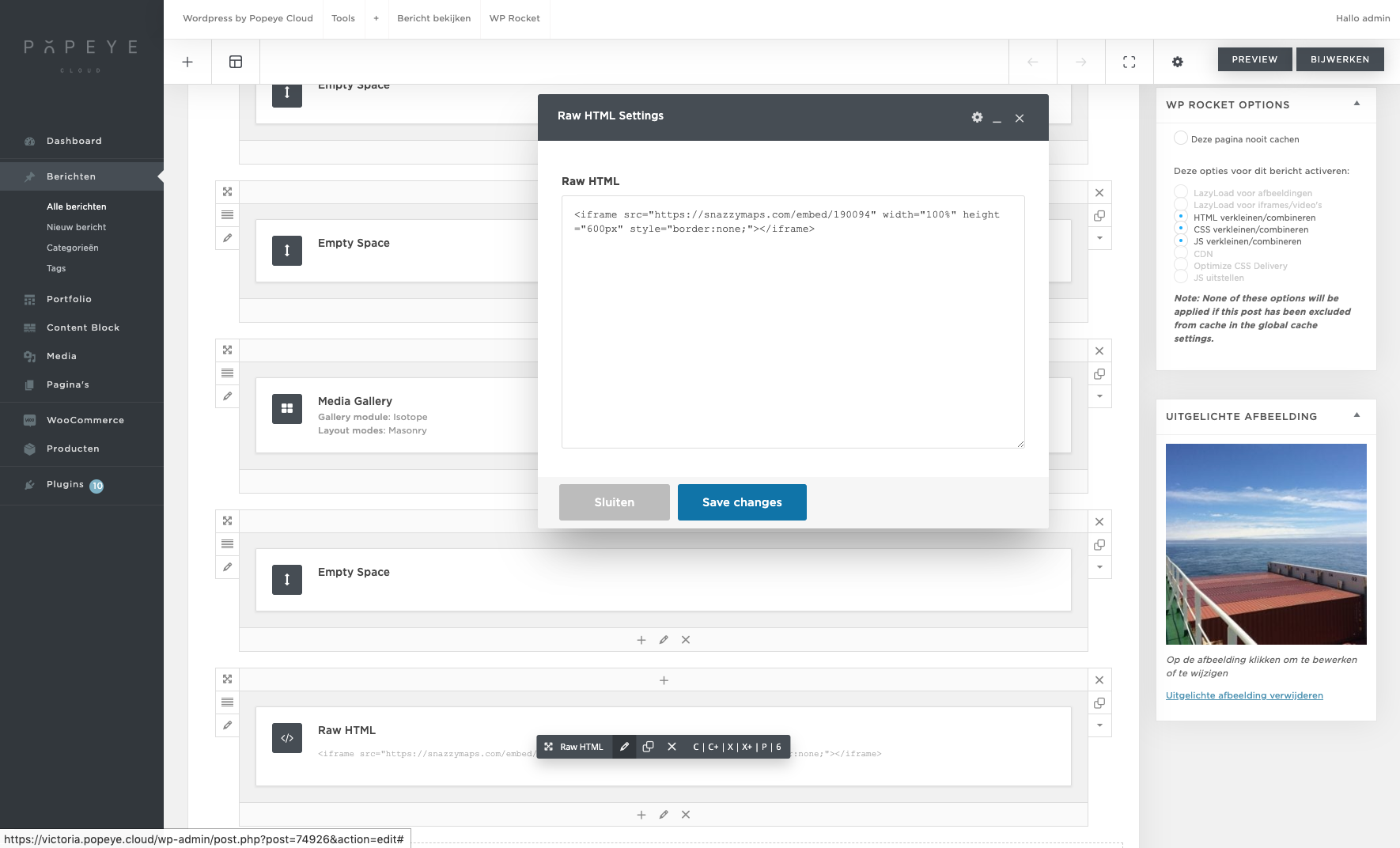
Finally, you can link the code on the page of a the location by clicking on raw html> edit (pencil) at the bottom of a trip, pasting the code and then saving it. If there is no raw html element yet, you can clink on top of ‘+’ (add element)> raw html then this will be added automatically at the bottom of the page.
Step 10:
We provided a media gallery at the bottom of each page. If you no longer want to use it because there is already a Google Map, you can easily remove it by clicking on the top right of that on X.