
How do I add slides to a content slider?
How do I add slides to a content slider?
— edit the content slider in the content block
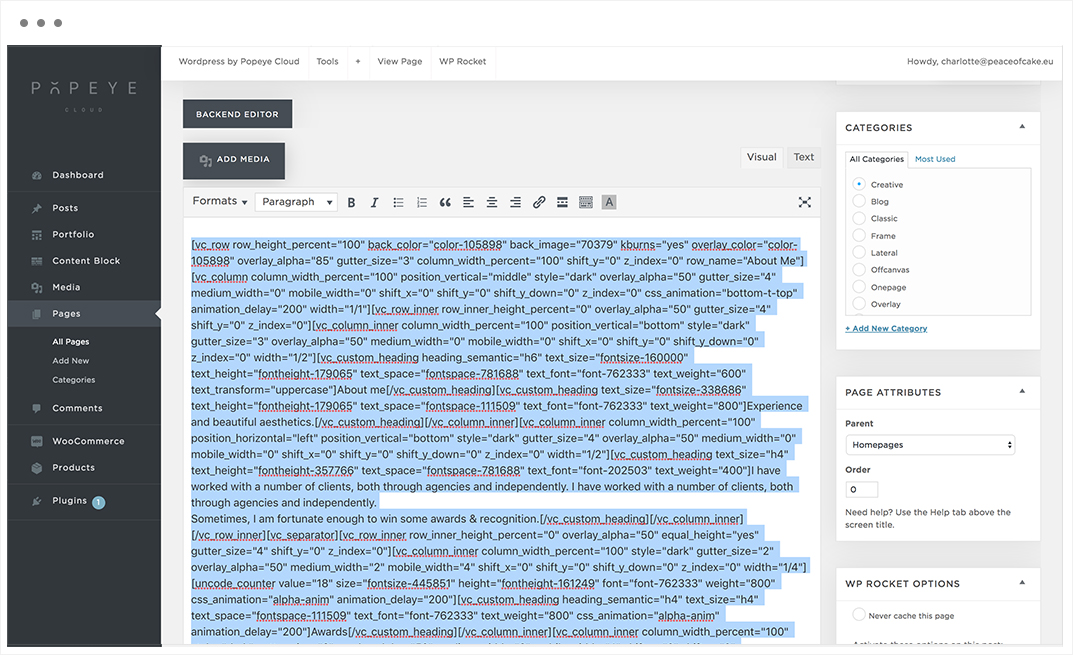
1. Open the content block panel in the left menu. Open the content block that you want to edit.
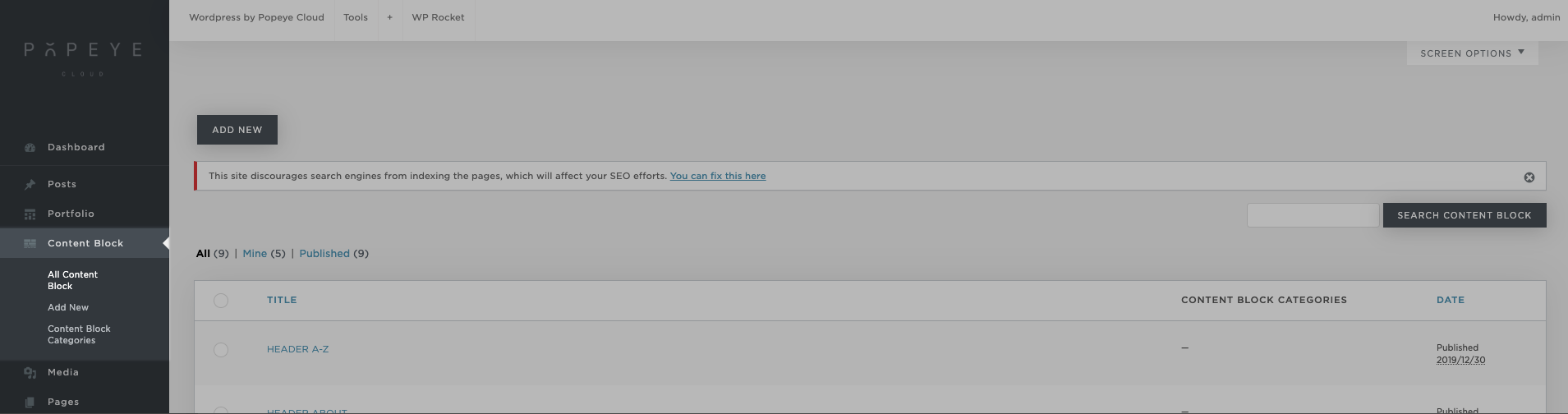
2. slide (row) duplicate
> clone this row
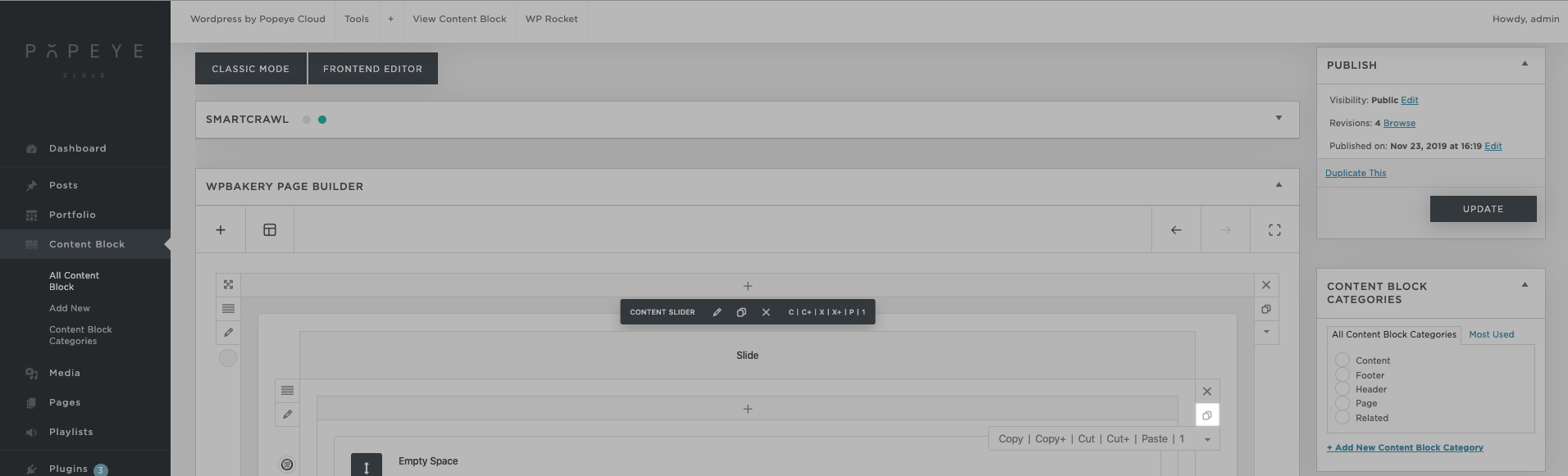
3. change the image
go to row > edit > inner row settings > style > background media > + (it is possible to scroll down to set the overlay color transparent in this screen)

4. change text
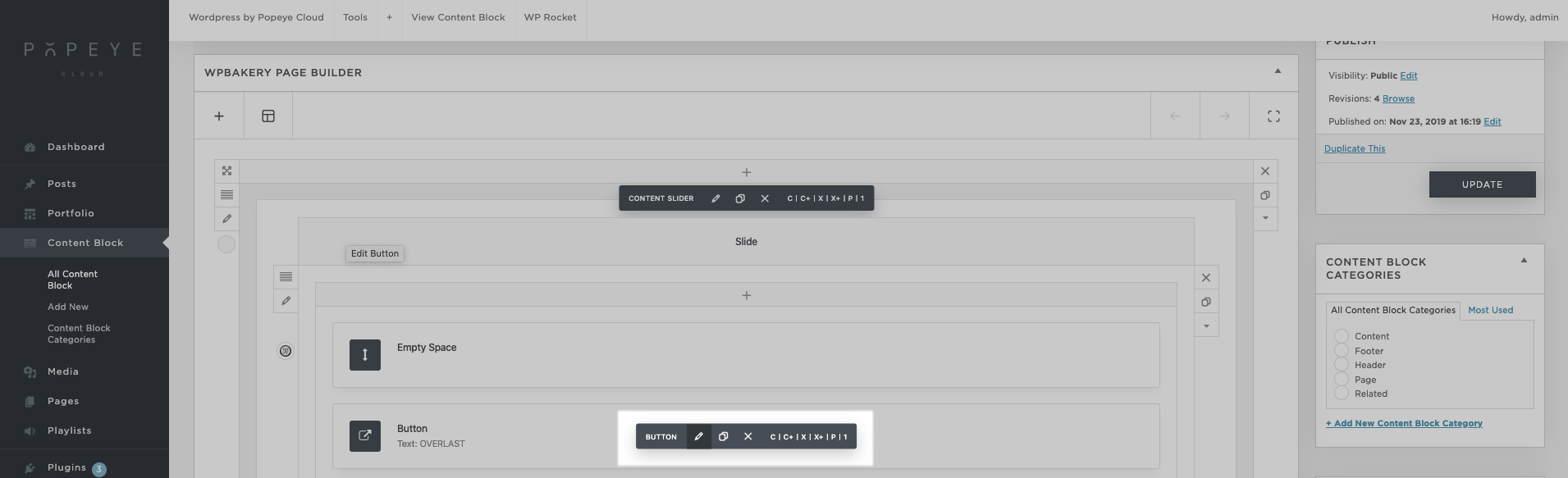
5. Change slides in order
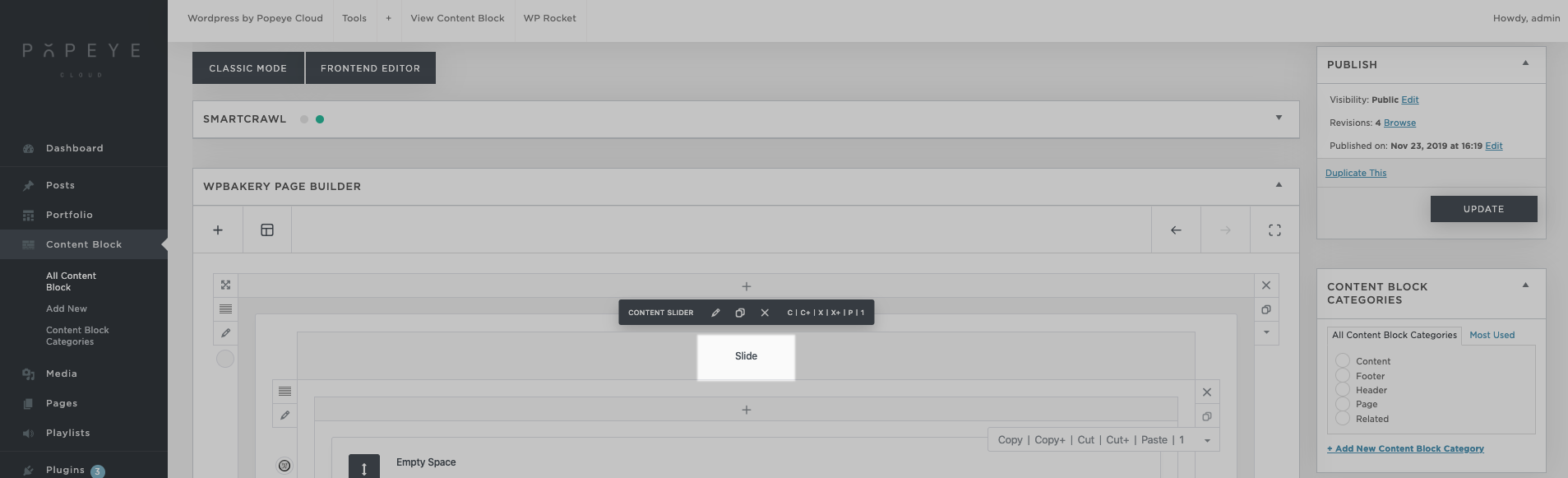
> Click on the word slide at the top of a slide and drag down
Tips 'n tricks
If you work on a smaller screen, you can press (command) + (minus sign) a few times in your browser so that you zoom out and get a clearer overview of the order. It is important to zoom in afterwards for the preview, otherwise the site will look a bit crazy.

How do I translate a page in a new language?
How do I translate a page in a new language?
— with the Polylang Language plugin
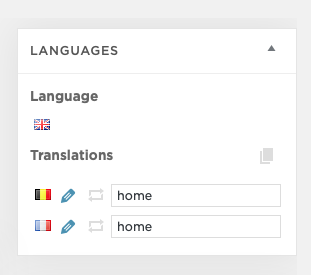
To translate pages you now have a language menu at the top of every page editor with the “add” option (plus) as below:
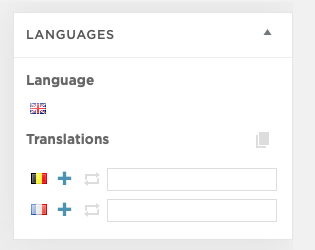
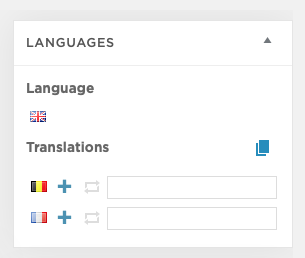
Here you must first turn on the light gray icon on the right to enable the duplicate mode. You will see that the icon turns blue. If you then click on + you will create a new page for that language with a duplicate in the current version. If you click on plus without first activating the duplicate option you will get a blank page for that language which is not necessary in your case.
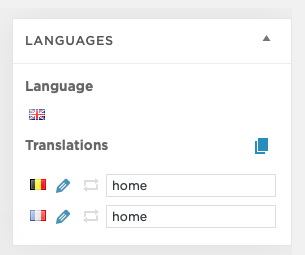
The plus sign changes to the ‘edit’ (pencil) symbol. With this you can quickly switch between languages by clicking on the ‘edit’ (pencil) symbol. !! It is very important (and confusing) that after creating the pages, the duplicate option must definitely be switched off again, otherwise you will overwrite the pages while switching.
If you have disabled the duplicate then this button will turn gray again and you can quickly switch between languages.
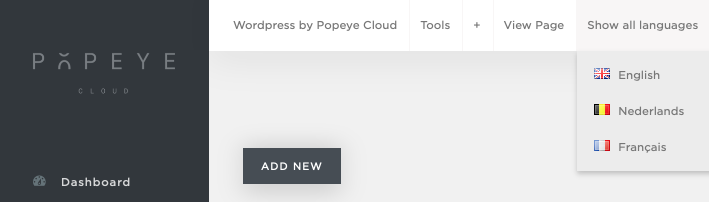
You can also switch language at the top of the menu bar, but here too it is important that the duplicate function turns off the language menu and therefore certainly not blue to prevent you from overwriting your translations.
Tips 'n tricks
This is a simplified manual that reflects the basics for easy and fast translations. For more in-depth information about the translation plugin you can check the complete plugin documentation on https://polylang.pro/doc/

How do I add a blog post ?
How do I add a blog post ?
— Learn everything about blog posts.
Posts -> add new
Enter a blog post title and make all the adjustments you like (text, media,..).

After you made the adjustments, press “publish”.
Tips 'n tricks
Give your blog post a categorie and a tag to reach more readers.
The featured image is the image the reader gets to see first.
How do I add a portfolio project ?
How do I add a portfolio project ?
— Learn everything about portfolio projects.
Portfolio -> add new

Tips 'n tricks
After you made the adjustments, press "publish".
How do I add a photo to a slideshow ?
How do I add a photo to a slideshow ?
— Learn everything about the media features.
Media gallery -> edit -> add an image.
Go to the page builder where you find the media gallery. Press the ‘+’ sign to add photos.

Tips 'n tricks
You can add multiple images at the same time.When you made the adjustments, press "save".
How do I edit a photo ?
How do I edit a photo ?
— Learn everything about the media features.
Media
Add new to upload a new image or select a photo and choose edit image.
Now you can crop, resize, mirror, scale,.. the image.

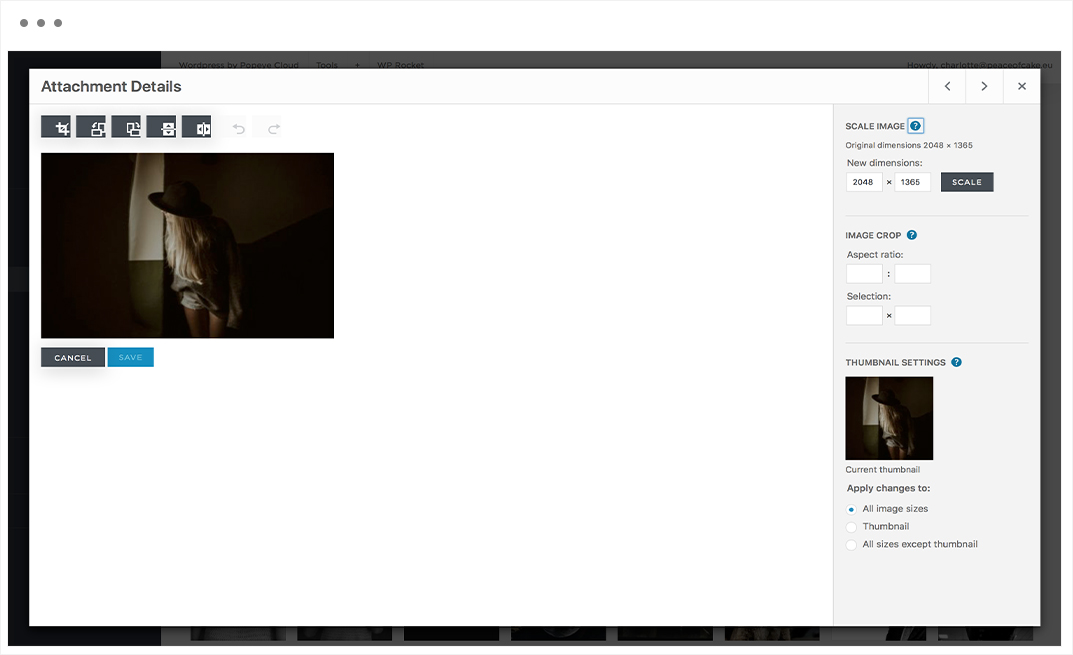
Tips 'n tricks
When you made the adjustments, press "save".
How do I edit a text ?
How do I edit a text ?
— Learn everything about the text properties.
Hover over the text you want to edit (content block, header,…) A pencil symbool will appear: edit text.
Click on the symbol.
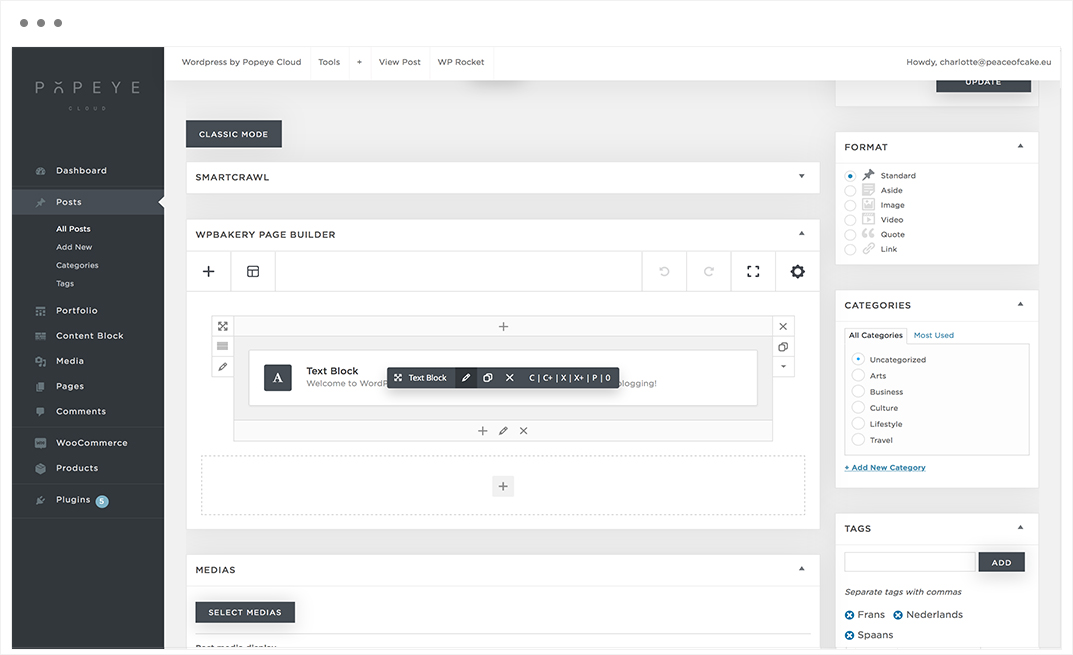
Tips 'n tricks
When you made the adjustments, click "save changes".
How do I add an extra field to my portfolio projects ?
How do I add an extra field to my portfolio projects ?
— Learn how to build your portfolio page.
You can add portfolio details yourself again -> Dashboard -> Theme options -> Portfolio -> Details -> Portfolio Details as on the screenshot below.
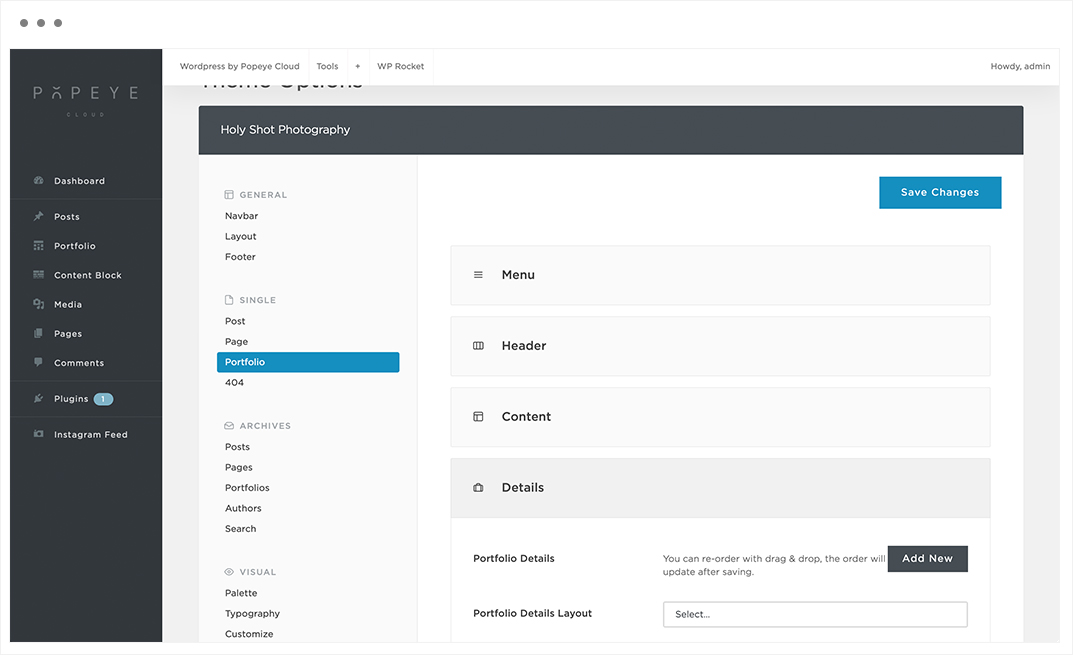
After that you can set the value for this field for each portfolio project via: Edit Portfolio -> Page Options -> Details as on screenshot below.
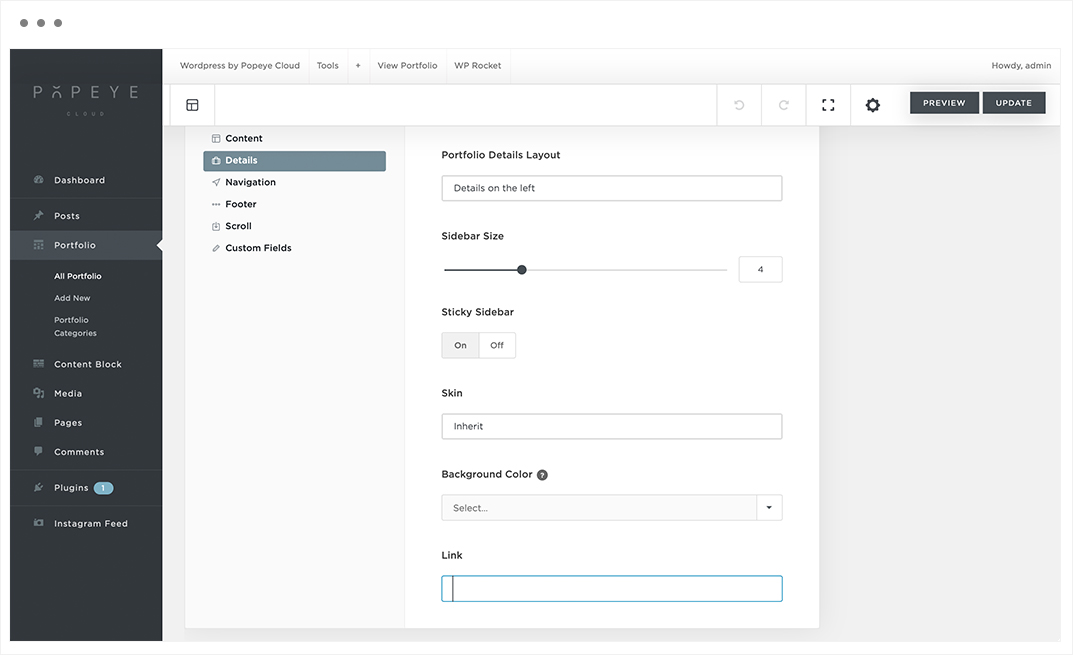
Here you can enter a clickable url that opens a new page, if you do not enter a portfolio detail, the label will not appear on the page either.
Tips 'n tricks
Portfolio archives has different properties then portfolio single.
What is the difference between dark and light skin ?
What is the difference between dark and light skin ?
— Dark and light skin is a important option in the theme options.
Light skin is used on light background image.
Dark skin is used on a dark background image. You can specify the text skin in the style tap of the column settings in the header content block.
As a result, the light skin will make your primary menu font color black and sets the logo to the one you have chosen in theme options navbar -> logo -> logo light. The same applies in the opposite way for the dark skin.
Tips 'n tricks
When you are confused using dark or light skin, think always the opposite. Dark skin for a dark background image and light skin for a light background image.
How do I copy code from a template to a blank page ?
How do I copy code from a template to a blank page ?
— By following these steps the code will be easily transformed to another page.
Step 1: Paste the link from the demo website behind the link from the website.

Step 2: Copy the code of the classic mode from the demo page to the classic mode of the new page.